Why Do Share Menus Cause So Many Wrong-Destination Mistakes?
A share menu looks like a shortcut. Tap an icon, choose a person or service, and the item is on its way. In a busy clinical shift, that can feel much safer than copying and pasting. But share menus can make the wrong action unusually easy: they put personal and work destinations side by side, promote recent contacts, and may send something before the user has had a clear chance to check the recipient.
This is the share sheet risk: the chance that a familiar, fast-sharing feature routes information to an unintended person, account, app, or storage location. The menu is not necessarily faulty. It is doing what it was designed to do—reduce friction. The problem is that reducing friction can also reduce the moment of reflection needed before sending sensitive information.
For clinicians and other healthcare staff, the answer is not simply “be careful.” Start with your employer’s device and BYOD policy, use approved systems for patient and organisational information, keep entertainment and clinical work separate, and check how your device handles notifications and previews. These steps make a wrong tap less likely—and make the consequences less serious if one happens.
Start with your employer’s device and BYOD policy
Before changing settings or installing an app, check your organisation’s policy. It should explain whether personal devices may be used for work, which services are approved, what security controls are required, and how to report a suspected disclosure or lost device. If the policy is unclear, ask your line manager, IT service desk, information governance team, or data protection officer. Don’t assume that a feature is permitted just because the device offers it.
Bring-your-own-device (BYOD) arrangements vary. An employer may allow access to work email but prohibit saving attachments to personal storage. Another may require a managed work profile, device encryption, a screen lock, or the ability to remove organisational data remotely. A technically available share option is not the same as an approved work route.
The Information Commissioner’s Office (ICO) provides guidance on working securely and working from home securely. Its practical security advice supports the same basic approach: follow your organisation’s rules, protect devices and information, and take particular care when working outside a controlled workplace. Use the ICO’s guidance as a reference point, but follow your employer’s current policy and local procedures for the specific systems you use.
- Check whether your device is approved for work and whether it must be enrolled or managed.
- Confirm which apps and storage services are authorised for patient and organisational data.
- Find out whether work and personal accounts must be separated on the device.
- Know how to report a misdirected message, lost device, or suspected data breach.
How a share menu creates the wrong-destination risk
Share menus—sometimes called share sheets—collect destinations from across a device. Depending on the operating system and installed apps, one screen might show a work-approved messaging or document service, personal email, a consumer cloud drive, Bluetooth, and suggested contacts. The exact layout changes with device, software version, settings, and recent use.
That convenience can create several common traps:
- Similar names: A work account and personal account may use the same name, initials, or profile photo.
- Prominent suggestions: Recent services suggestions or contact suggestions may appear above the full app list, making them easier to tap than the approved destination.
- Automatic account choice: An app may open using whichever account was last active, rather than the account the user intended.
- Ambiguous file handling: “Save to” options can look alike even when one stores the item in an approved work location and another in personal cloud storage.
- Speed and distraction: A ringing phone, a waiting colleague, or an interrupted task can turn a routine tap into an unreviewed send.
It is easy to mistake a familiar icon for a verified destination. It is also easy to assume that a folder, work-looking label, or contact name makes the route secure. It does not. A folder is an organisational convenience, not a security control by itself. The destination, account, access permissions, and approved handling method all matter.
Use approved systems for patient and organisational data
For patient information, use only the systems and communication routes your employer has approved for that purpose. The same principle applies to organisational information that is confidential or otherwise protected. Do not use a personal email account, consumer messaging service, or personal cloud account as a workaround when an approved system is inconvenient or unavailable.
Approved systems are selected and configured to meet organisational requirements. Depending on the system, they may provide access controls, auditing, retention arrangements, encryption, or administrative oversight. A personal service may not give your employer the same safeguards how to lock down clinician phone or ability to manage information. You may also lose control of a file once it has been copied into a personal account or shared with an unintended recipient.
When a task seems to require an unapproved route, stop and ask for the correct process. For example, if you cannot reach a work document from your personal device, contact IT rather than forwarding it to a personal inbox. If a colleague cannot access a file, use the approved permissions or support route rather than sending a second copy through another app.
Pause at the point of sharing
Build a short, repeatable check into the action itself. Before tapping “Send,” “Share,” or “Save,” verify four things:
- Content: Is this the correct file, image, message, or attachment? Does it include information that should not be shared?
- Recipient: Is the person or group correct? Check the full name or address, not just an icon or first name.
- Service: Is this the approved system for this information?
- Account: Is the app using the right work or managed account?
This last step is account verification. It means checking which account is active before sending or saving—not assuming that the app will choose correctly. Look for the account name or work indicator inside the destination app, and confirm the destination location when saving a file. If the account is unclear, cancel and check through the app’s account settings or your organisation’s instructions.
Separate entertainment from clinical work on the device
Keeping personal entertainment and clinical work apart reduces accidental mixing. A device that uses the same apps, accounts, and recent destinations for everything makes it harder to notice when a work item is about to go somewhere personal.
Where your employer supports it, use a managed work profile, separate work and personal accounts, or a dedicated work device. These arrangements can help distinguish work apps and data from personal use, but they do not replace following policy or checking a recipient. If your organisation does not support a particular separation feature, do not improvise a setup that might move work information into an unmanaged area. Ask IT what is permitted.
Practical habits can help as well:
- Use only approved work apps for clinical tasks; don’t add patient details to personal notes, photo libraries, or entertainment apps.
- Avoid using personal accounts as default destinations for work files.
- Keep work and personal account names visibly distinct where your organisation permits this.
- Review sharing permissions and connected accounts through approved device or app settings.
- Remove old work accounts or apps only by following your employer’s process, especially if the device is managed.
Do not rely on hiding an app, moving a file into a folder, or changing an icon as proof that information is protected. These steps may make items less visible, but they do not control who can access them or where they are sent.
Lock screen previews and notification privacy
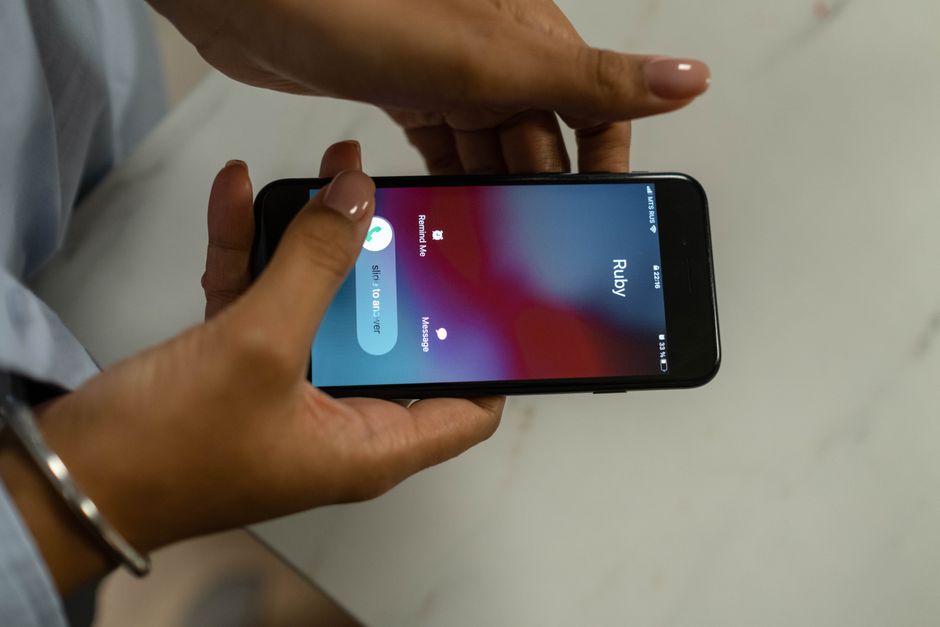
A wrong destination is not the only way information can be exposed. Lock screen previews may display message text, sender names, email subject lines, appointment details, or other sensitive content while a device is locked. Someone nearby may see the screen, or a notification may appear during a handover, on public transport, or at home.
Review notification settings for work email, messaging, and other work apps. Depending on the device and app, you may be able to hide content while locked, show only that a notification has arrived, or disable previews. The right configuration depends on your employer’s policy and the device’s capabilities.
Settings do not always behave as expected across every app or operating-system version. Test the result on the actual lock screen: send yourself a harmless test notification or ask an authorised colleague to trigger one, then lock the device and check what is visible. Do this for the relevant work apps, not just one general setting. Avoid using real patient information as a test.
Also check whether notifications appear on linked devices, such as a smartwatch, tablet, or computer. A phone may be configured to hide message content while a paired device still displays it. If you are unsure how to manage linked-device previews, ask your IT service desk.
A simple way to assess a sharing route
Use this quick table when deciding whether a route is suitable. If you cannot answer “yes” to personal email for work documents the relevant checks, stop and confirm the approved process before sharing.

If you share something to the wrong place
Act promptly and follow your organisation’s incident-reporting process. Do not quietly delete the item and assume the issue is resolved; the recipient may already have seen, downloaded, or forwarded it. Contact the relevant manager, information governance team, data protection officer, or service desk according to local procedure. Provide clear facts: what was shared, when, through which app or account, and who may have received it. Avoid sending further copies while trying to fix the problem.
Fast reporting helps the organisation assess the situation and decide what steps are needed. It is better to report a suspected misdirection early than to delay because you are unsure whether it counts as an incident.
Make the safer action the easy action
Share menus are designed for speed, not for clinical governance. That is why a good response combines policy, system design, and a brief user check. Use approved systems for patient and organisational data. Keep work and entertainment separate where your organisation supports it. Verify the recipient, service, and account before sharing. Finally, review lock screen and linked-device notifications—and test what is actually visible.
Those steps are more useful than a general reminder to “be careful.” They give staff a practical pause point, reduce reliance on recent services suggestions, and make it easier to spot when a familiar share sheet is steering information somewhere it should not go.
ICO resources
- ICO: Security guidance for organisations
- ICO: Working from home securely
Check the ICO website for current guidance, and use your employer’s policies and local reporting procedures for decisions about devices, apps, and clinical information.